Written by

Featured Video
Table of Contents
Remote KVM devices are incredibly useful in a home lab, especially when a server stops responding or you need access before the operating system has even booted.
But most KVM over IP devices are relatively larger boxes.
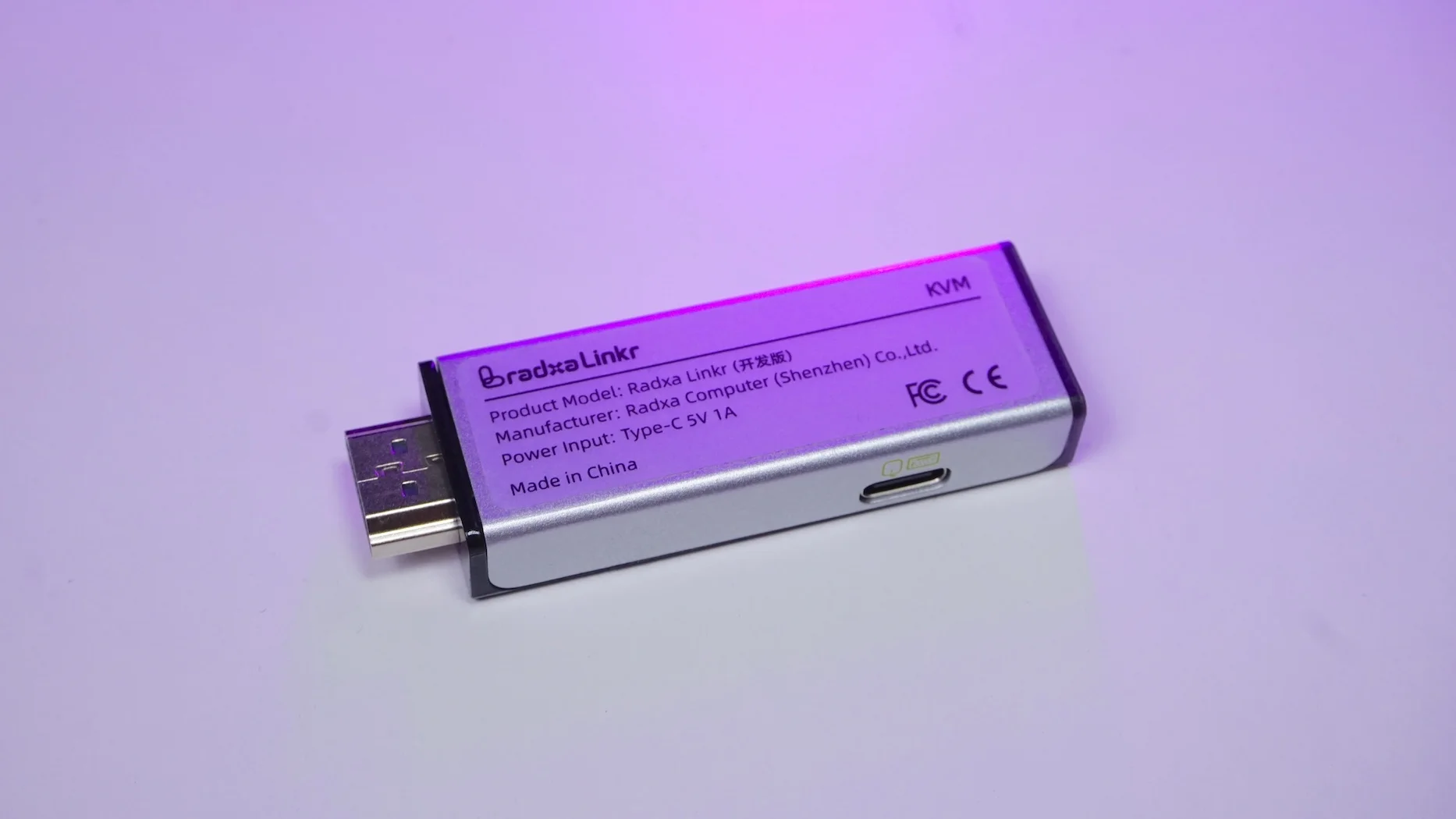
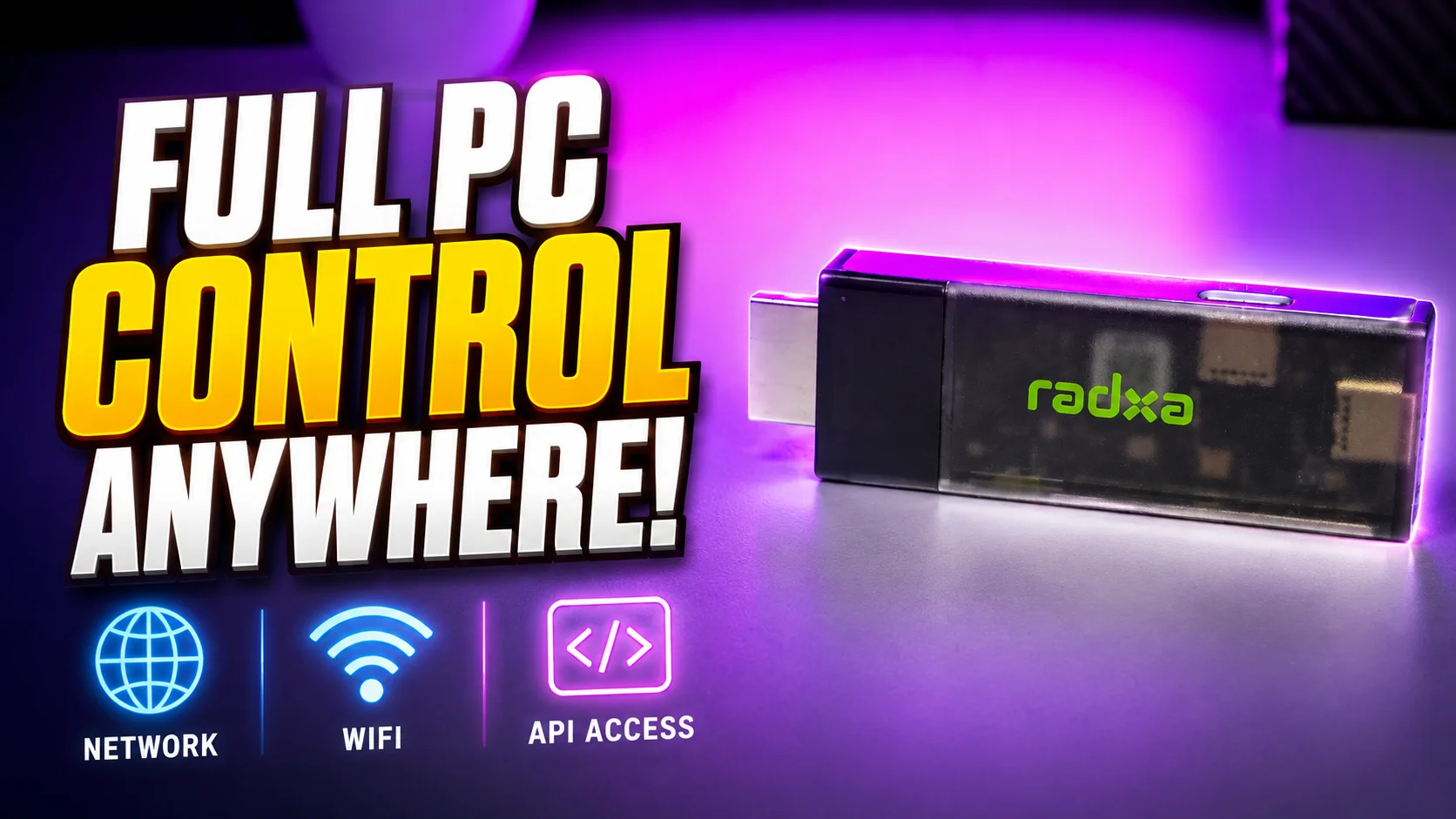
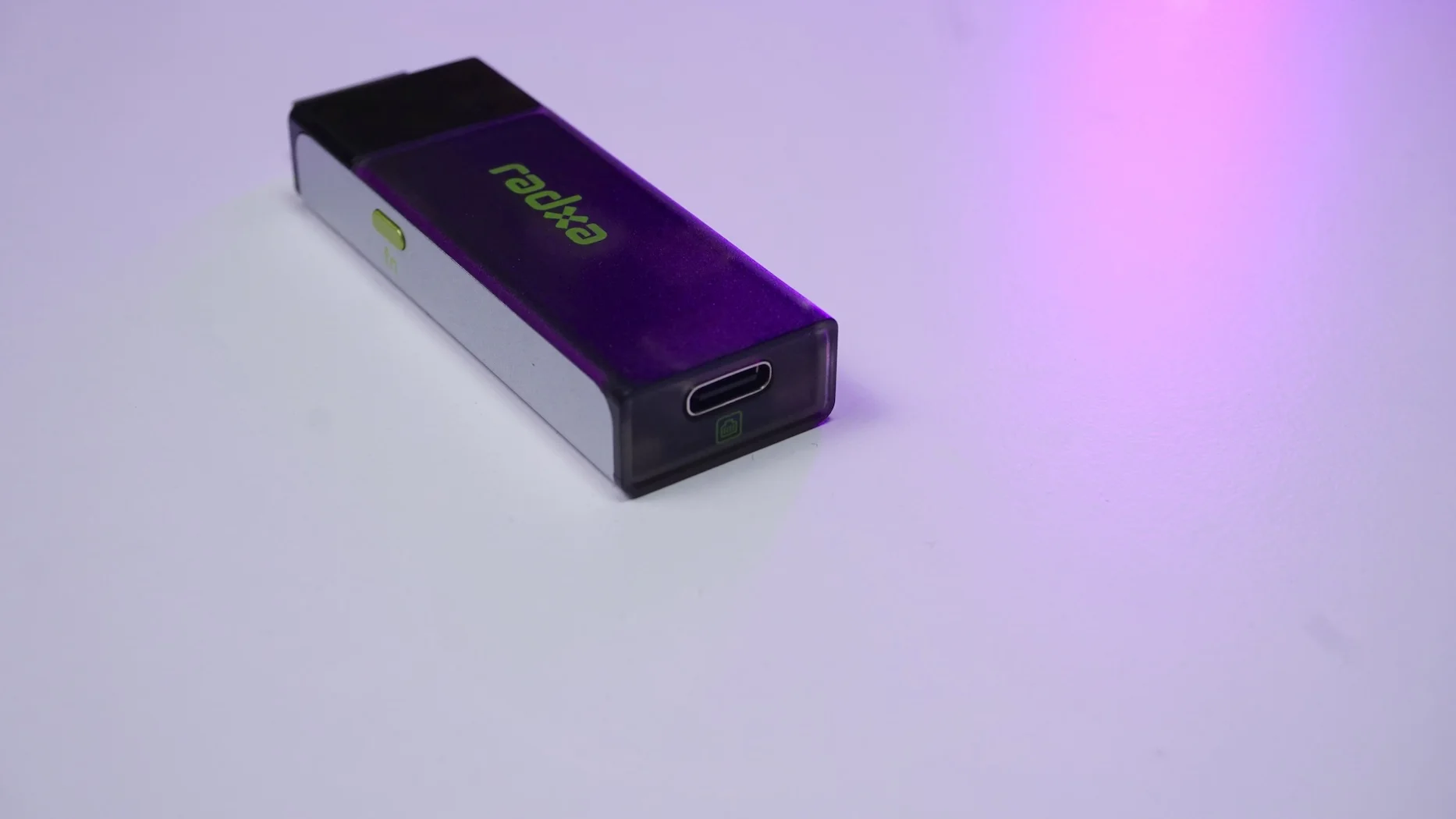
The Radxa Linkr takes a very different approach. It is a thumb-sized remote KVM, roughly comparable to a USB flash drive, yet still gives you remote display, keyboard and mouse control.
What makes it even more interesting is something I haven't seen on many KVMs I have tested: public APIs for automation and programmatic control.
Compact Hardware and Ports
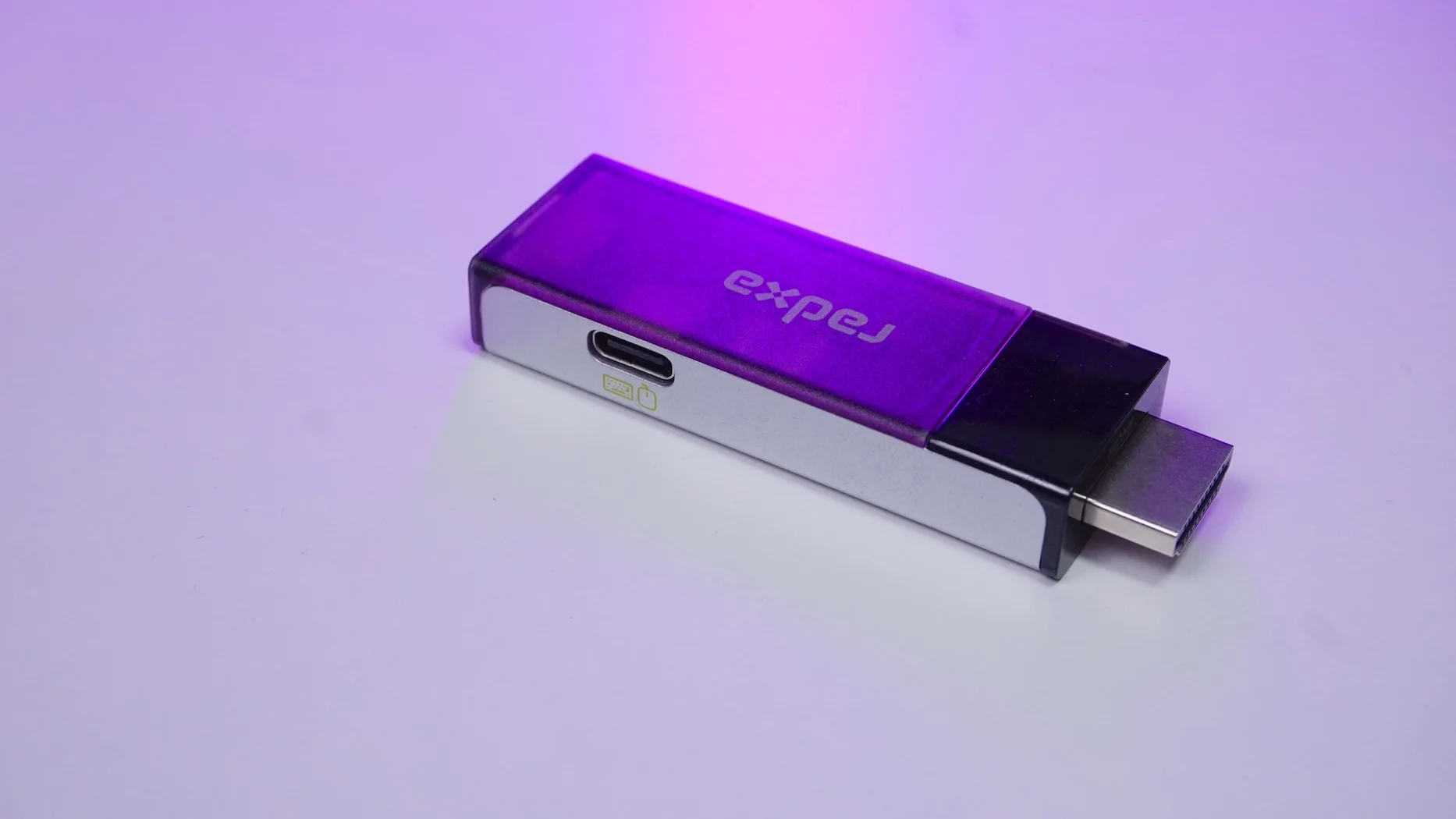
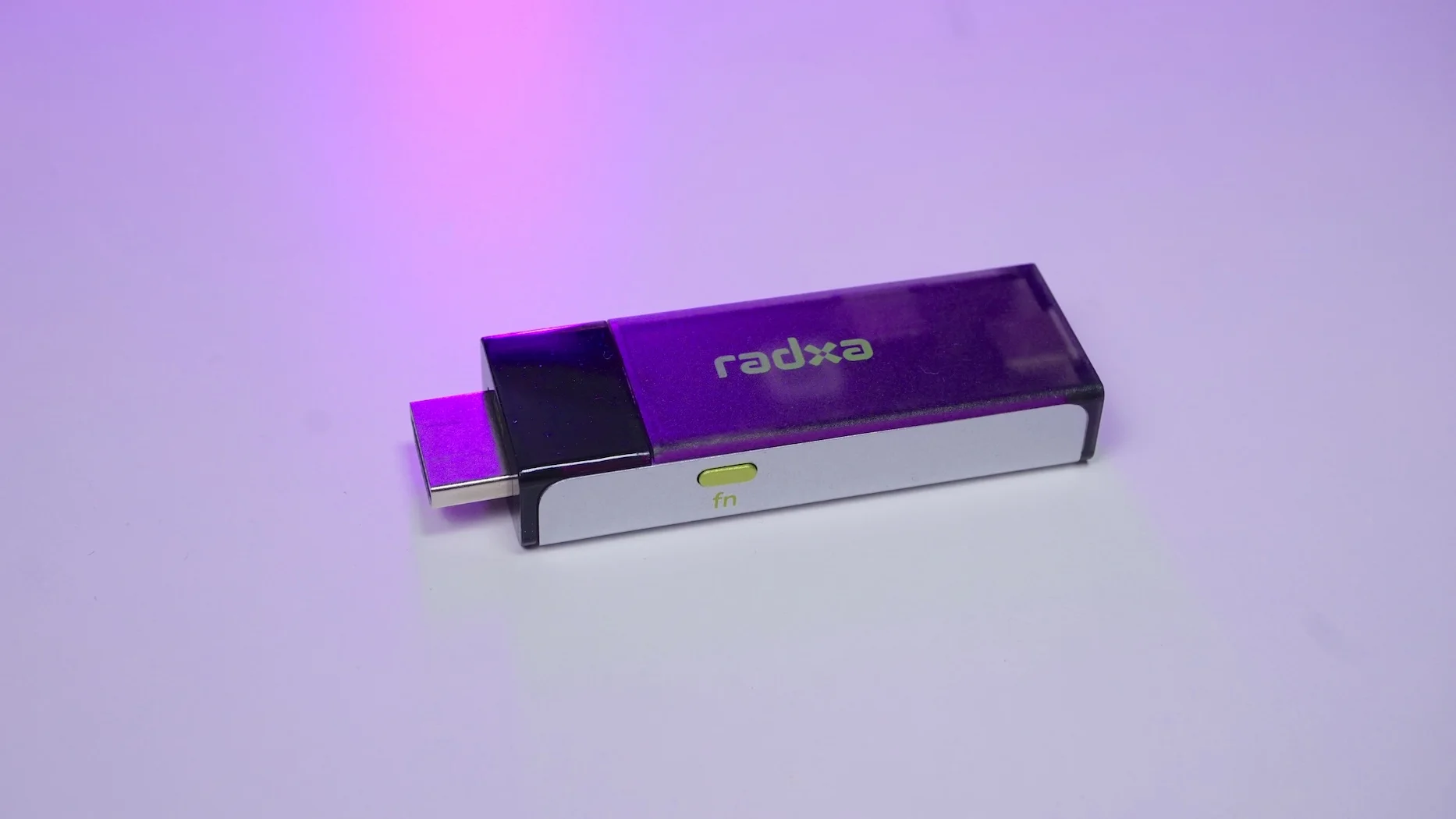
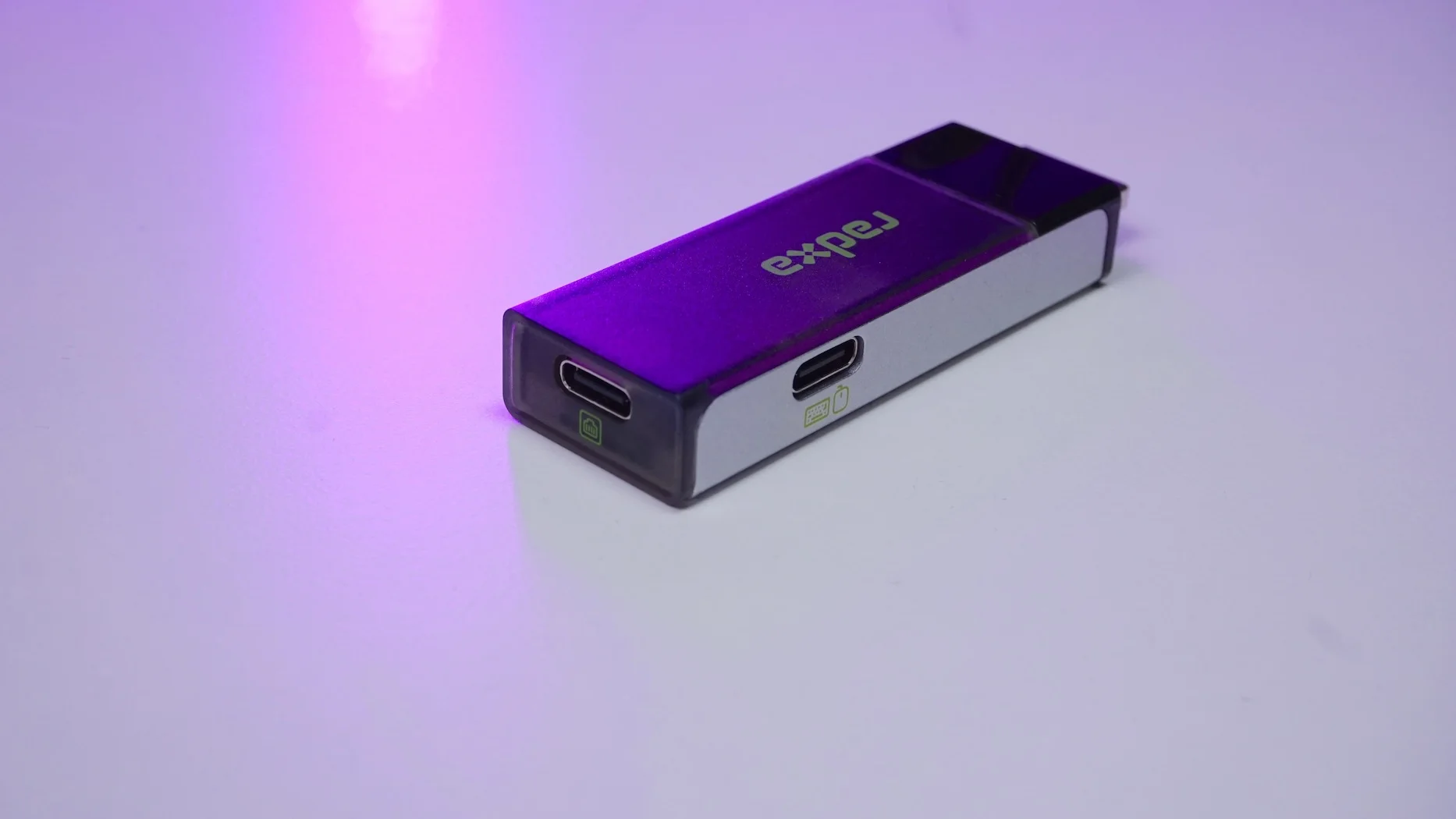
Despite its small size, the Radxa Linkr KVM has the essential connections needed for remote management.
You get:
- HDMI input for capturing the target computer's display
- USB-C connection for keyboard and mouse control and for power
- USB-C to Ethernet connectivity for connecting it to your network
Radxa includes USB-C cables, a USB-C power/data splitter, and a USB-C to RJ45 cable with the device.
This makes the Linkr particularly interesting for compact home lab servers, SBCs, mini PCs and headless computers.
Multiple Connection Options
One advantage of the Linkr is that you are not restricted to Ethernet.
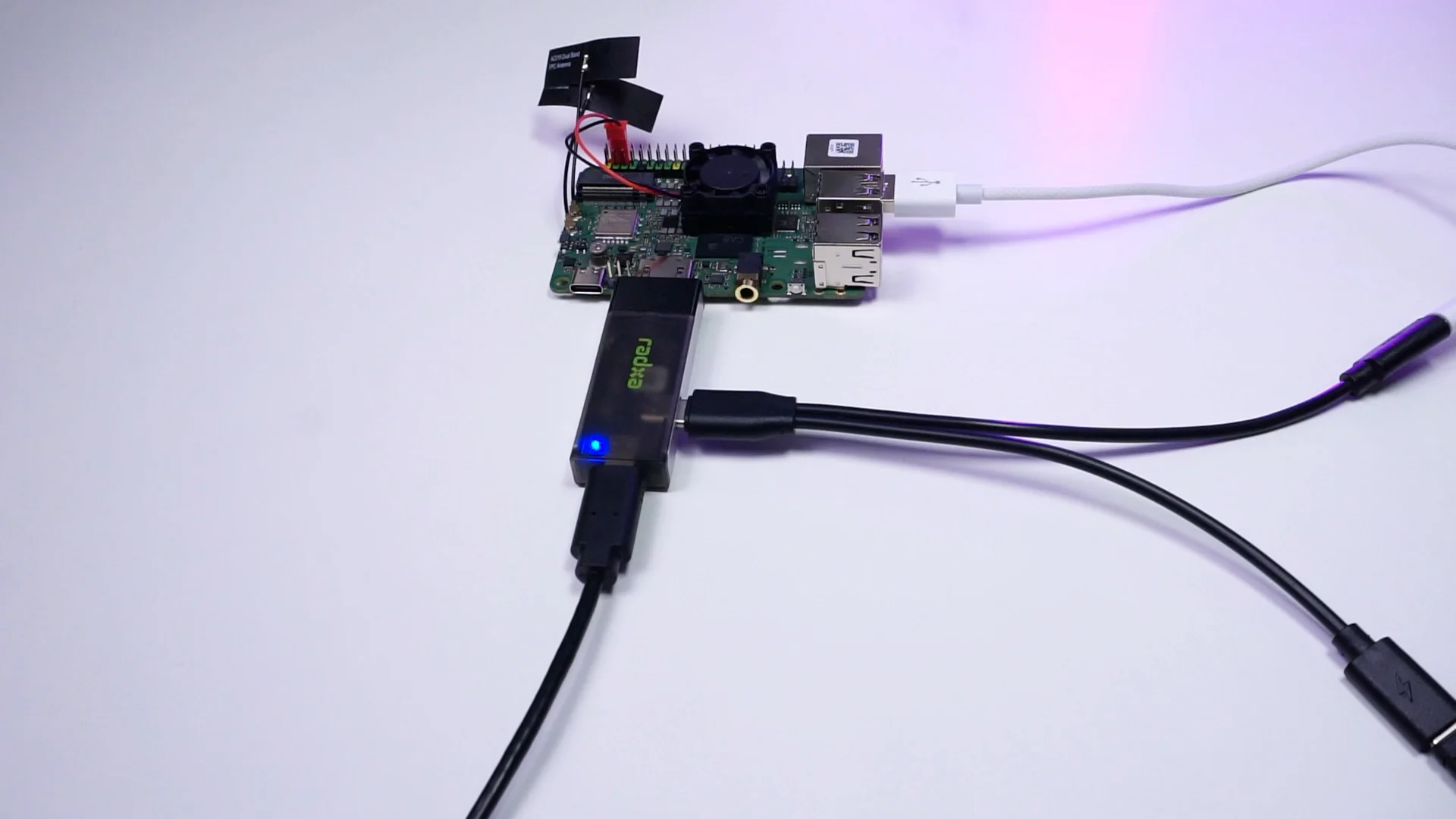
There are four different ways to connect:
- USB-C to Ethernet
- Direct USB-C connection
- Wi-Fi client mode
- Wi-Fi access point mode
Radxa officially supports all four connection methods. For a permanent home lab installation, Ethernet will probably make the most sense.
For portable troubleshooting, however, being able to connect directly over USB-C or Wi-Fi can be extremely convenient.
Simple Browser-Based Remote Access
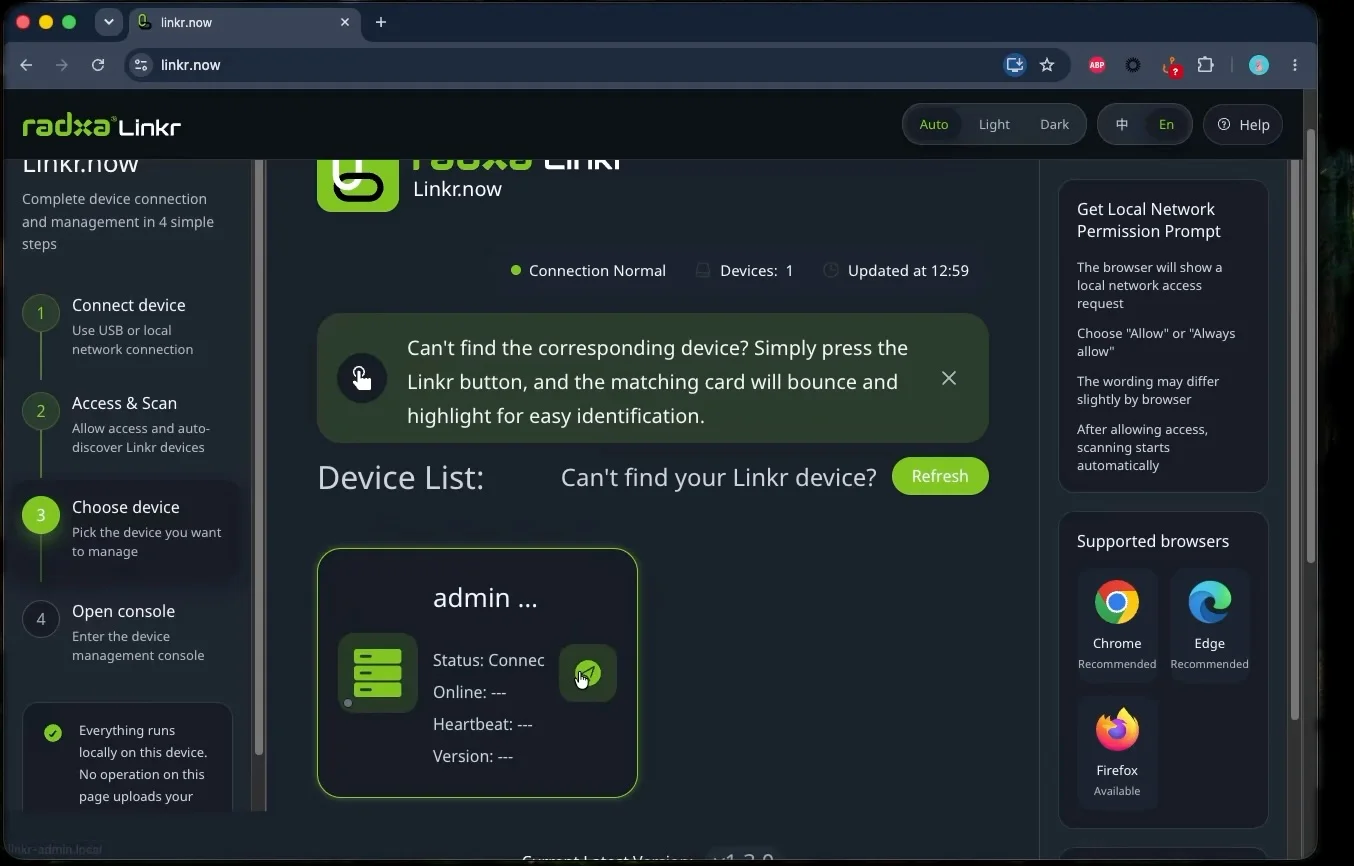
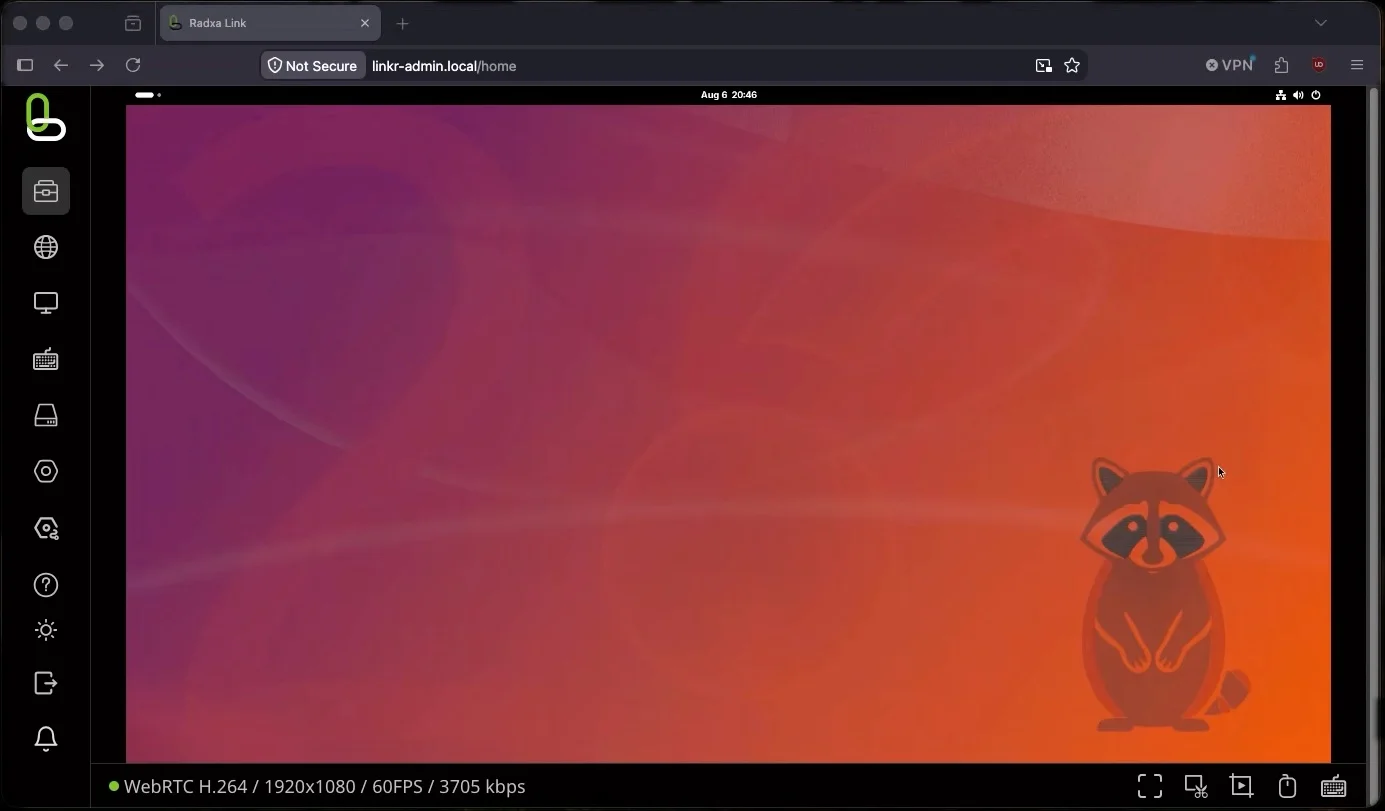
After connecting the Linkr to the target computer, you can access it through your browser.
Radxa provides https://linkr.now, which can automatically discover Linkr devices available locally or on your network.
From there, you can open the KVM web interface and remotely control the connected computer.
You essentially get:
- Remote display
- Keyboard control
- Mouse control
- Screenshots
- Screen recording
- Virtual keyboard
- Custom hotkeys
- Display scaling options
There is no need to install remote desktop software on the target machine. That also means the KVM can remain useful when troubleshooting BIOS, bootloader or operating system problems.
Public API for KVM Automation
This is easily the feature I found most interesting.
Most KVM devices I have tested are primarily designed around their web interface. The Radxa Linkr also provides a public API.
You can generate an access token and interact with the KVM programmatically. Radxa exposes APIs for capturing the screen and sending keyboard or mouse commands.
Radxa is actually positioning Linkr as hardware that can be controlled by both humans and AI agents. For developers and home lab enthusiasts, this makes the Linkr much more interesting than a basic browser-only KVM. You can read more about it here
Virtual Media for Remote Recovery
The Linkr can also provide virtual media to the target computer. On my unit, I had roughly 12 GB of onboard storage available for this purpose. You can use this to keep installation or recovery images and mount them remotely to the target computer.
Radxa officially supports mounting ISO and IMG virtual media for operating system installation, driver loading and system recovery. This can be extremely useful when managing a headless home lab server.
Instead of physically connecting a USB drive, you can potentially:
- Access the machine through the KVM.
- Mount an operating system image.
- Reboot the computer.
- Enter the BIOS or boot menu.
- Reinstall or recover the operating system remotely.
2K Remote Video
There is one compromise that comes with such a compact device. The Ethernet connection is limited to 100 Mbps.
However, the Linkr supports video input up to 2K at 30 Hz, which is more than adequate for server administration and most remote management tasks. Radxa lists support for H.264 and MJPEG streaming.
You are unlikely to use a KVM like this for gaming or high-refresh-rate desktop work anyway.
This is enought for tasks such as:
- BIOS configuration
- Server maintenance
- Linux administration
- Operating system installation
- Troubleshooting
- Home lab management
Secure Remote Access with Tailscale
The Linkr is not limited to devices on your local network.
Radxa also includes built-in Tailscale support, allowing you to reach the KVM remotely without exposing it directly through traditional port forwarding.
That can make the Linkr particularly useful for remotely managing:
- Servers at another location
- Home lab machines while travelling
- Family computers
- Remote SBC deployments
- Test systems
For anyone already using Tailscale in a home lab, this is a particularly useful addition.
Radxa Linkr Price
When I tested the Linkr, I was told by the Radxa team that the pre-sale price would be around $59. That would make it a very interesting option considering its compact size and feature set.
However, pricing can change once the product becomes widely available, so I recommend checking the latest Radxa Linkr pricing before purchasing.
Final Thoughts
The Radxa Linkr is one of the more interesting compact KVM devices I have tested.
Its biggest strengths are:
- Extremely compact design
- HDMI remote display capture
- Remote keyboard and mouse control
- Ethernet, USB and Wi-Fi connectivity
- Up to 2K@30Hz video
- Virtual ISO/IMG mounting
- Browser-based management
- Public API access
- Automation and AI-agent possibilities
- Built-in Tailscale support
The API functionality is what really makes the Linkr stand out for me.
Instead of being just another KVM over IP, it can become part of a larger automated home lab or remote management system.
For developers, self-hosters and home lab enthusiasts who want a small and programmable remote KVM, the Radxa Linkr is definitely an interesting device to keep an eye on.